1024Proxy Settings
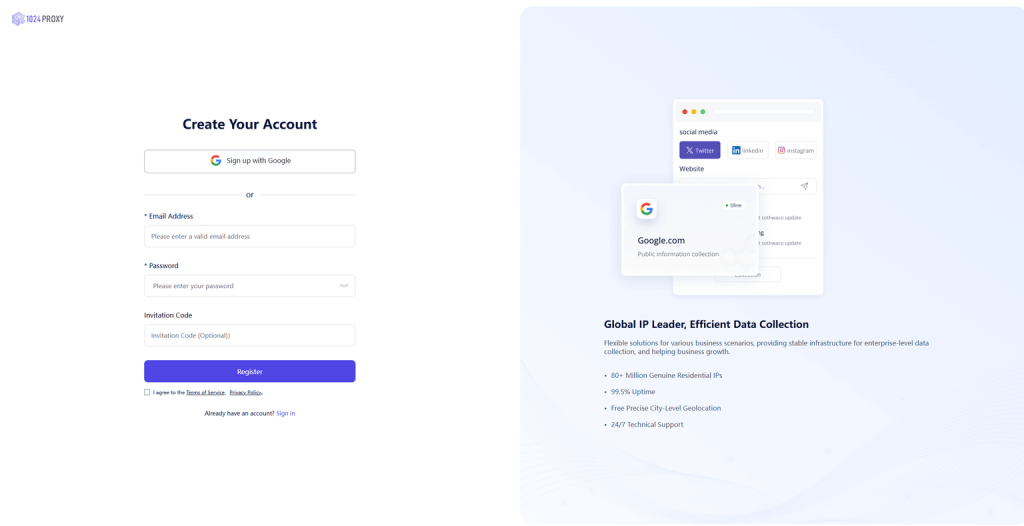
1. Log in to the 1024proxy official website. (Free trial includes sub-account features)
2. Select the package type and extract the IP (long-term static, dynamic traffic, unlimited package - bandwidth, unlimited package - port).

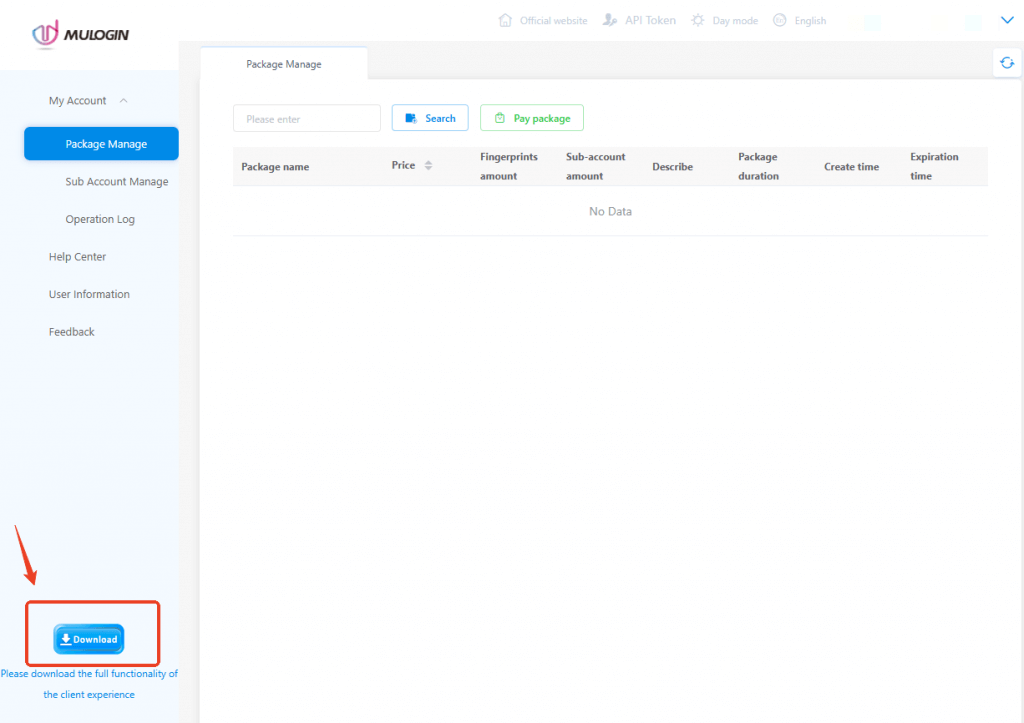
3. Download and install the latest MuLogin client.
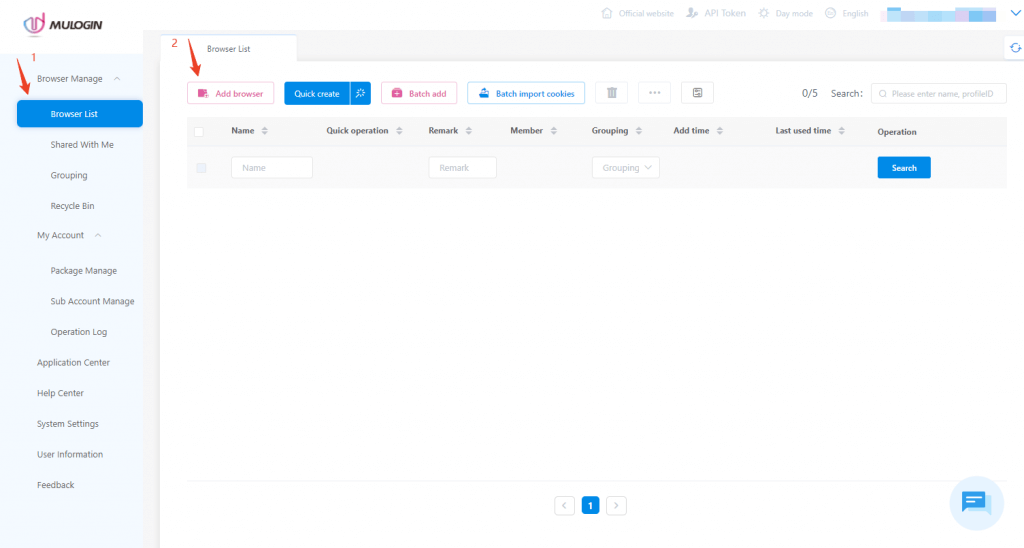
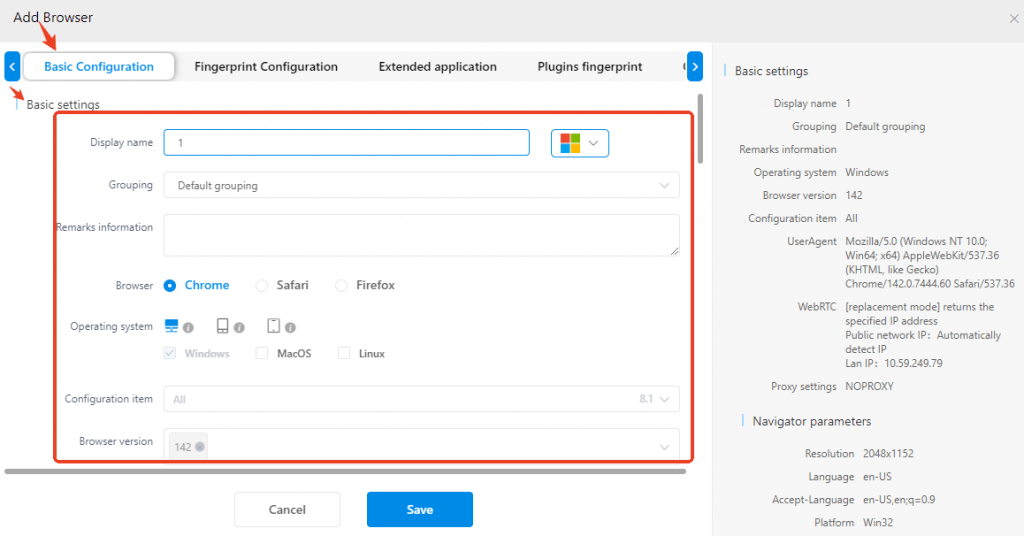
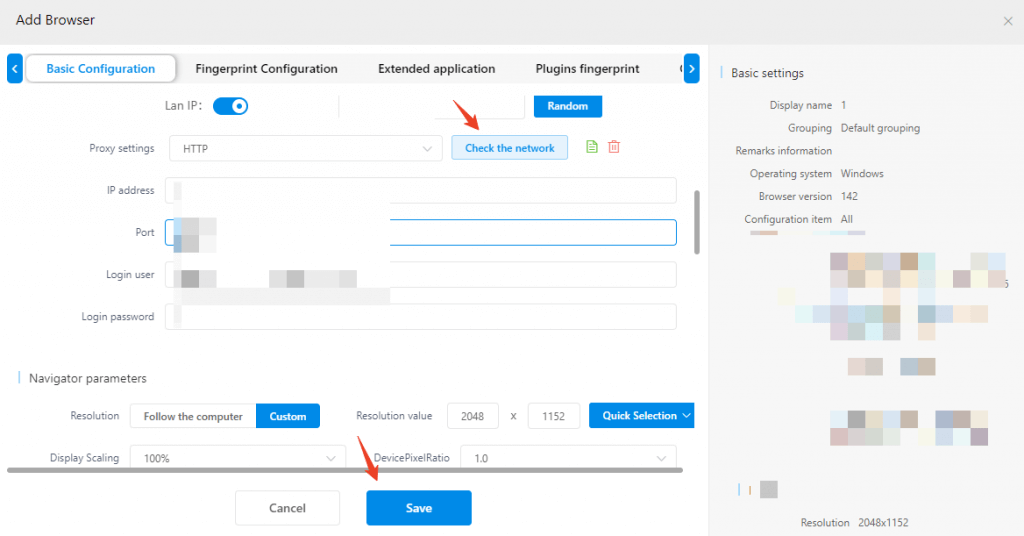
4. New Browser: [Add Browser], a detailed information page as shown in the figure, will appear. Fill in the information in the [Basic Settings] section.
5. Configure proxy: Locate the [Proxy Settings], select "HTTP, HTTPS or Socks5" for the [Proxy Type], then fill in the proxy information of 1024proxy in the corresponding fields, and click [Check the network] to test the connectivity of the proxy. After confirming there are no errors, click [Save] to complete the creation of the browser window.
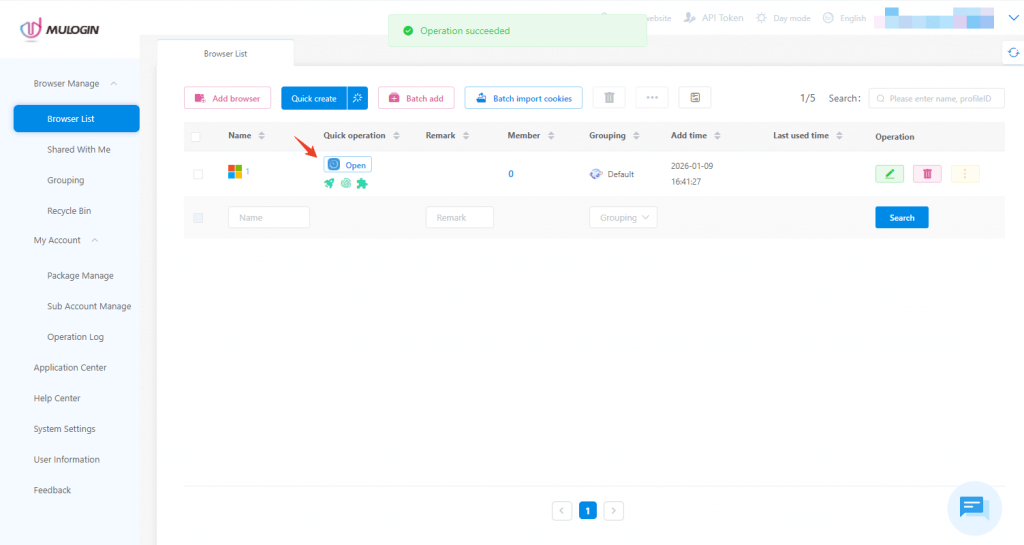
6. After the configuration is completed, select the configured browser and click "Open" to proceed.
Note: MuLogin does not supply proxies; users must purchase them from external providers. All proxy setup instructions come from third-party services, not from MuLogin itself. Using this software for illegal or unlawful purposes is strictly forbidden, and users bear full responsibility for any consequences.