MobileProxy Settings
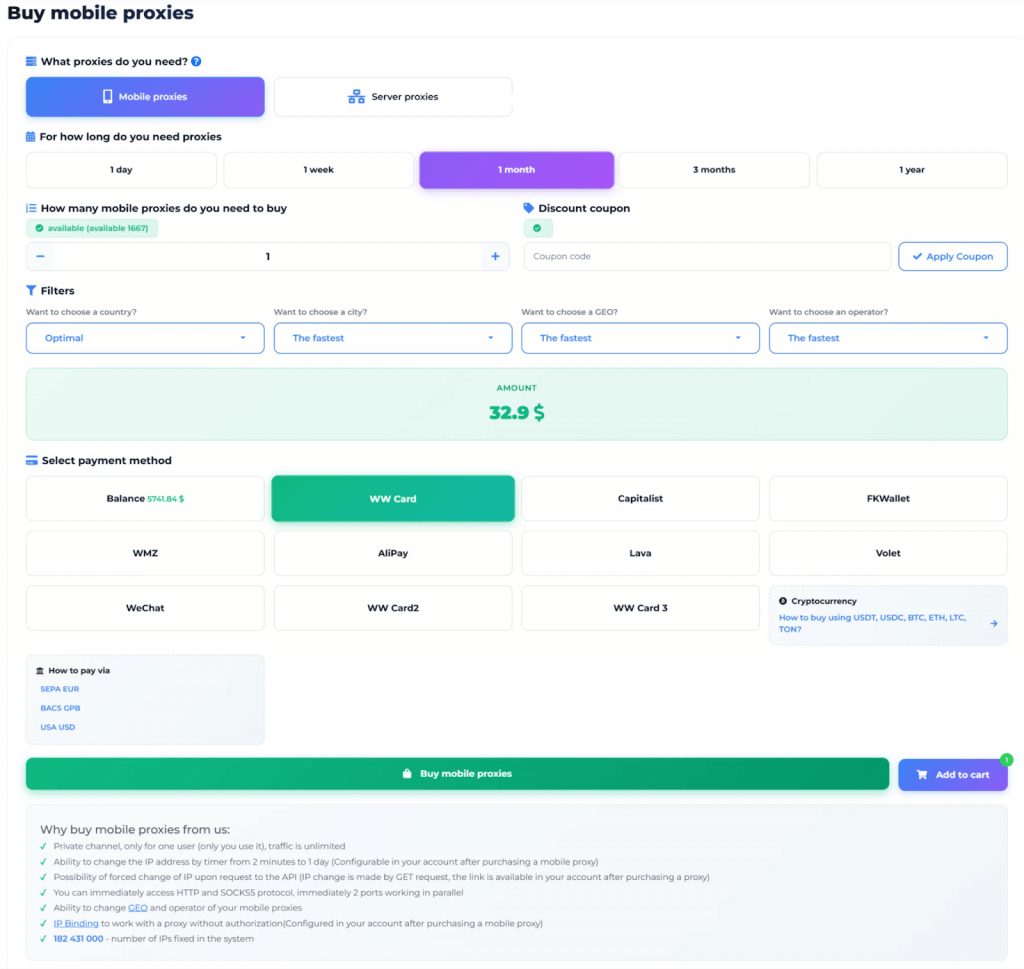
Step 1: Create an Account and Purchase a Proxy
Use promo code MuLogin to get a 20% discount on your first purchase at MobileProxy.Space.
1. Open the MobileProxy.Space website and click "Sign Up" to create your account.
2. After registration, go to your Dashboard. Select the desired country and plan duration (1 day, 7 days, 30 days, 3 months, or 1 year), then complete the purchase. You can also start with a free trial to test the service before buying.
Step 2: Get Your Proxy Connection Details
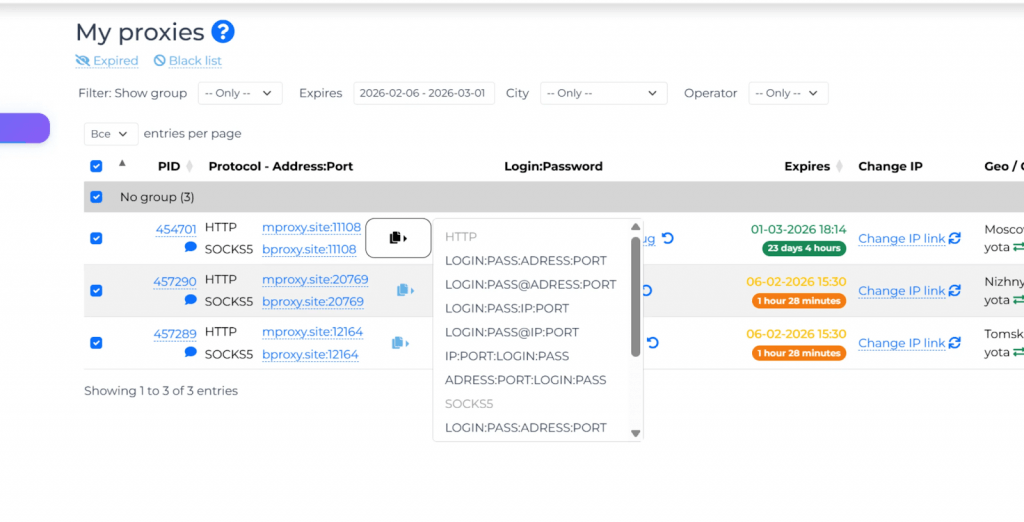
3. In your Dashboard, locate your active proxy. You will see all the connection credentials you need:
- HTTP Host: mproxy.site
- SOCKS5 Host: bproxy.site
- Port: displayed in your dashboard for each proxy
- Login: your proxy username
- Password: your proxy password
You can also find the IP change link (API URL) which allows you to rotate your IP address instantly at any time.
Step 3: Open MuLogin and Configure the Proxy
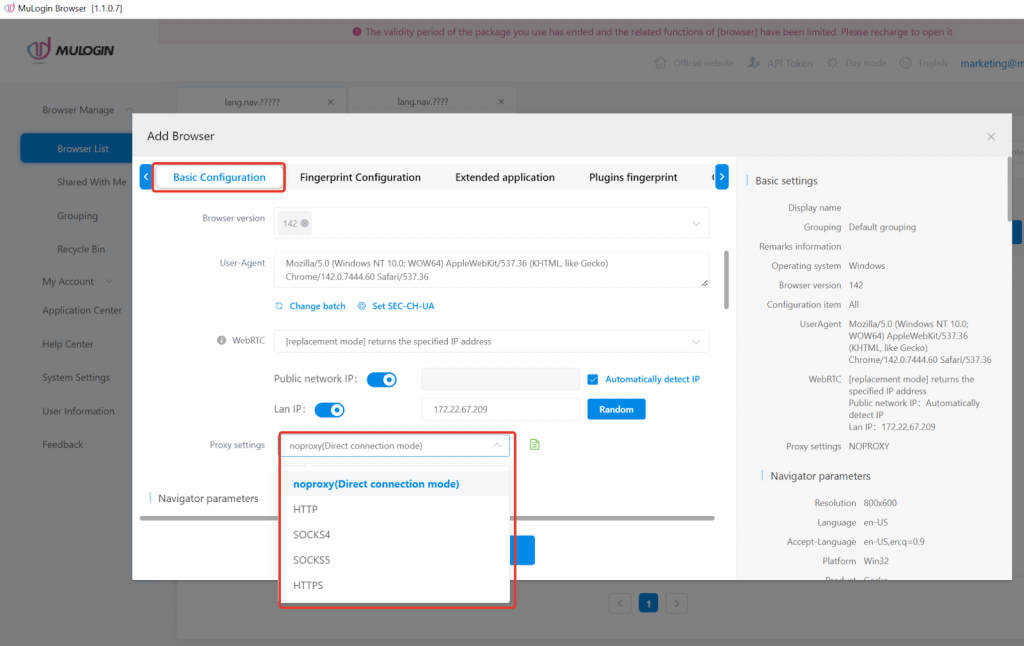
4. Open MuLogin and create a new browser profile or select an existing one. Click "Setting proxy server" to open the proxy configuration window (Support a 3-day free trial).
Step 4: Enter the Proxy Settings
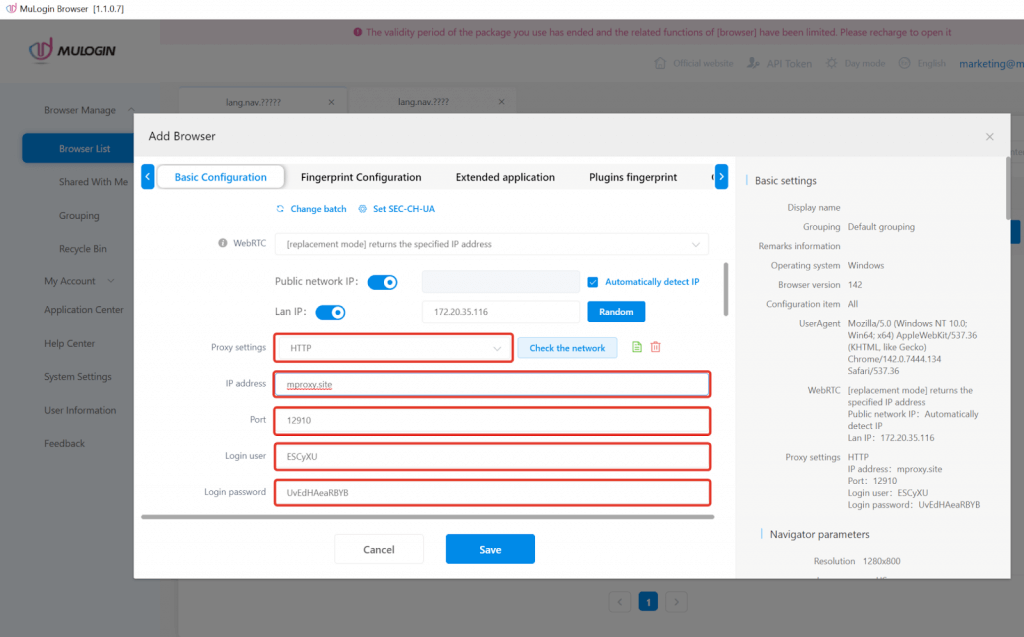
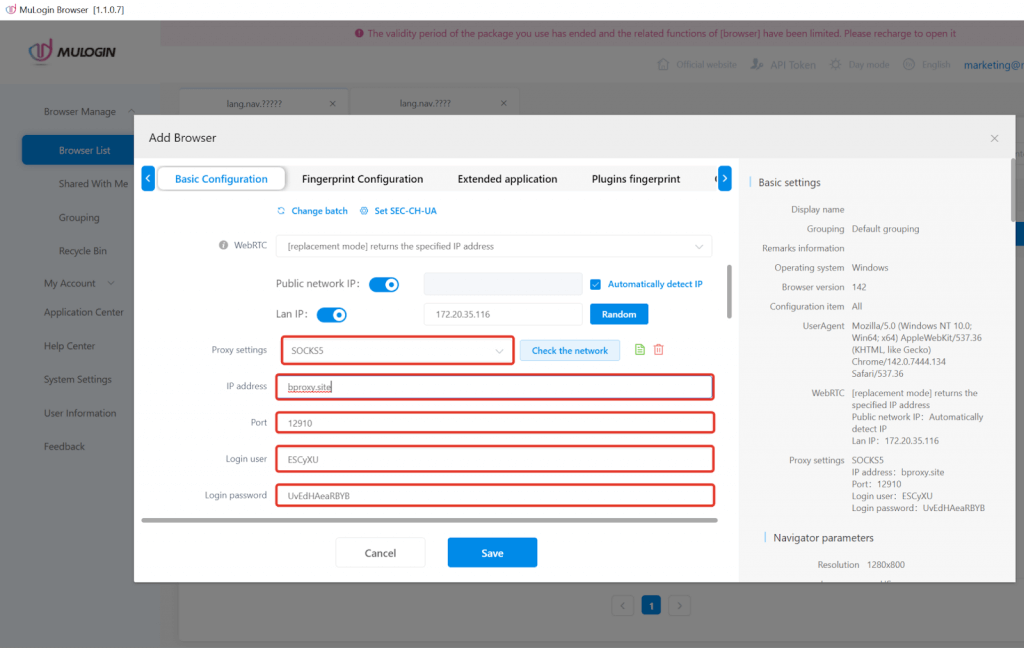
5. In the proxy settings window, configure the connection using your MobileProxy.Space credentials.
For HTTP Proxy:
- Proxy Type: HTTP
- IP Address: mproxy.site
- Port: your port number from the MobileProxy.Space dashboard
- Username: your proxy login
- Password: your proxy password
The paste format is: mproxy.site:Port:Username:Password
For SOCKS5 Proxy:
- Proxy Type: SOCKS5
- IP Address: bproxy.site
- Port: your port number from the MobileProxy.Space dashboard
- Username: your proxy login
- Password: your proxy password
The paste format is: bproxy.site:Port:Username:Password
Step 5: Test and Save the Proxy
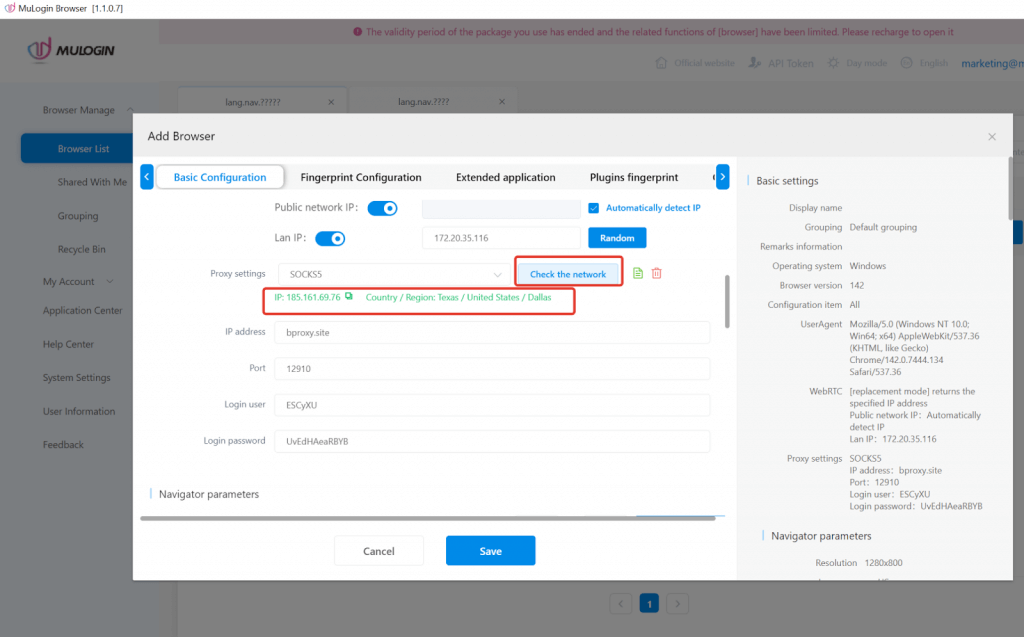
6. Click "Test Proxy". If the connection is successful, MuLogin will display the proxy IP information including the country and IP address. Click "Save" to apply the settings.
7. You can now open the browser profile and start working through your private mobile proxy.
IP Rotation and Additional Features
Note: MobileProxy.Space provides flexible IP rotation options. You can change your IP address at any time using:
- The IP change button directly in your MobileProxy.Space dashboard
- An API link for automated IP rotation (ideal for scripts and automation tools)
- Timer-based rotation — set automatic IP change intervals in your dashboard settings
MuLogin browser software has no proxy IP service, users need to purchase proxy IP from a third party. Third-party platforms provide proxy-related tutorials and are not related to the MuLogin. Users are strictly prohibited from using MuLogin to engage in any illegal and criminal activities, and users are responsible for the relevant responsibilities caused by using MuLogin.